How to Remove Background From a Picture on iPhone
Remove the background from any picture on iPhone: the built-in Photos method, a free no-app web option, and how to save a transparent PNG.
 BackGone Team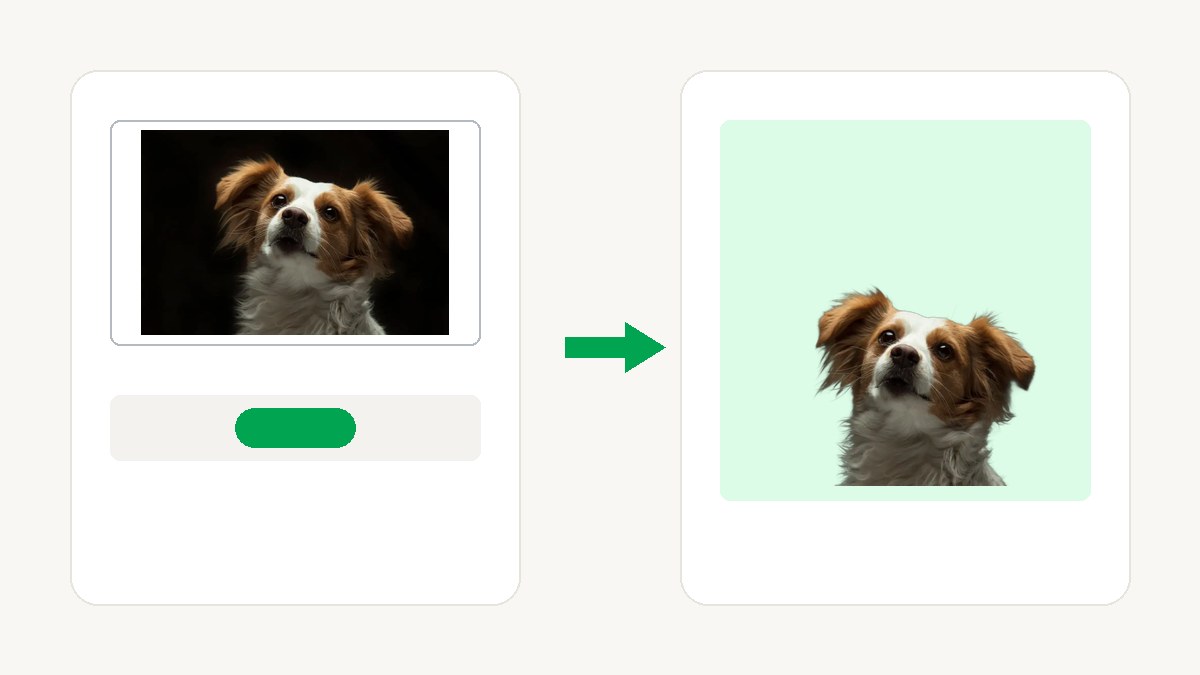
"How to remove background from a picture on iPhone" has two good answers, and which one wins depends on what you need the cutout for. For a quick lift to paste somewhere, your iPhone already does it — no app, no website. For cleaner edges, batches, background colors, or a reusable transparent PNG file, the free web route on this page is the better tool. Here is each one, honestly compared.
Method 1: Built-in iPhone Photos
Since iOS 16, the iPhone can isolate a photo's subject from its background by itself. Apple's own guide (Lift a subject from the photo or video background on iPhone, checked 2026-10-14) gives the whole recipe:
- Open the photo full screen in Photos (or pause a video on any frame).
- Touch and hold the subject. A glowing outline appears around it.
- Choose what to do with it: Copy to paste into an email, message, or note; drag it with a second finger into another app; Add Sticker to save it for Messages and Markup; or Share to send it via AirDrop, Mail, and more.
The same gesture also works in Safari and Quick Look, per Apple's page. What you get back is the subject as an image with transparency — so pasting it into Messages or a note looks like a proper cutout, not a rectangle.
Its limits are the flip side of "built-in": there is no batch (one subject at a time), no background-color or shadow controls, no way to refine the mask when it misreads an edge, and no file you can set aside unless you share it somewhere. It's a brilliant clipboard tool. The moment you need more than that, read on.
Here is what that gesture looks like on a real iPhone, frame by frame (menu labels appear in the phone's system language — Chinese here):



Method 2: Remove background on iPhone without an app
No install, no account, works on any iPhone (and any iOS version — it's just a website):
- Tap upload below and pick a photo — JPG, PNG, WebP, or HEIC up to 10 MB. HEIC converts right in your browser, no setting to change.
- The AI removes the background in seconds, with pixel-precise edges — hair, fur, and fine product details included.
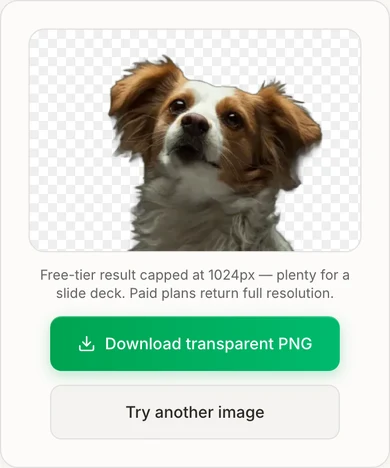
- Download the transparent PNG to Photos or Files. Free: 2 images a day without an account, 5 a day signed in, no watermark. Free downloads are capped at 1024px on the longest side — plenty for listings, documents, and social.
Try it now, right here in the article:
JPG, PNG, WebP or HEIC · up to 10 MB · free, 2 images a day without an account
For more than a handful of pictures — a whole product line, a class set of headshots — the bulk background remover processes batches in the same browser tab. And if the cutout needs a new background rather than transparency, the same tool on the homepage offers 35+ preset colors and a custom hex — white for listings, light grey for profiles.
Built-in vs. BackGone: when to use which
Best for
- iPhone built-in lift
- Quick copy-paste into Messages, notes, Mail
- BackGone (this page)
- A reusable transparent PNG file
Edge precision
- iPhone built-in lift
- Great on clear subjects; complex edges (hair, fur, glass) can fray
- BackGone (this page)
- Pixel-precise edges — hair and fine details included
Batch
- iPhone built-in lift
- One subject at a time
- BackGone (this page)
- Up to 100 per batch on the bulk page (Pro)
Background colors
- iPhone built-in lift
- None
- BackGone (this page)
- 35+ presets and custom hex
Shadows
- iPhone built-in lift
- None
- BackGone (this page)
- Drop, ground and reflection styles
Output
- iPhone built-in lift
- Copy / Share as PNG with transparency
- BackGone (this page)
- Transparent PNG download — 1024px free, full resolution paid
Needs
- iPhone built-in lift
- iOS 16 or later
- BackGone (this page)
- Any browser, any iOS
Cost
- iPhone built-in lift
- Free with your iPhone
- BackGone (this page)
- Free 2 a day, 5 signed in; credits never expire
The honest summary: for "paste this dog into a message right now," the built-in wins — it's already in your hand. For "I need this product photo clean enough to sell with," take the extra thirty seconds and use the web route.
iPhone 15, iPhone 14, iOS 16 — and iPad
The lift feature arrived with iOS 16, so it works on every iPhone that runs iOS 16 or later — which includes the iPhone 14 and iPhone 15 families out of the box. If you're on an older iOS, the built-in simply doesn't exist for you, but Method 2 doesn't care: it's a website, and it runs on anything with a browser.
On iPad, the same touch-and-hold lift works the same way (the feature is part of the shared Photos toolset), and the web route is identical — with more room to work. TODO: the exact minimum iPadOS version for the lift feature, if you need it stated officially.
One related note: lifting also works on a paused video frame (open the video, pause, touch and hold the subject) — handy when the moment you want never got photographed.
A note on HEIC photos
iPhones save photos as HEIC by default — and that's fine here: BackGone converts HEIC to JPEG right in your browser when you upload, so there's nothing to convert and no setting to change. If a HEIC file ever fails to convert, save or share the photo as JPEG (a screenshot works too) and upload that instead.
Ideas: stickers, product photos, passport photos, signatures
- Stickers: the built-in's Add Sticker is made for this — lift your pet, your kid, your lunch, and it lives in Messages. This is the one job where the built-in is unbeatable.
- Product photos: cut out on the web route, then put the item on a compliant background before you list it — marketplaces judge edges at 100%.
- Passport and ID photos: official photos have per-country size and background rules — use the passport photo background remover, which crops to the common sizes and sets white, blue, or red backgrounds.
- Signatures: a signature photographed off paper has the same background problem — the signature background remover is tuned for ink.
- Finishing touches: change the background color to match a brand, or add a natural shadow so the cutout sits on the page instead of floating.
- New to judging cutout quality? Our general guide shows what good and bad edges look like: how to remove a background without wrecking the edges.
Frequently asked questions
Can I remove a background from a photo on iPhone for free? Yes — twice over. The built-in lift (touch and hold the subject in Photos) is free on any iPhone running iOS 16 or later. And the web route on this page is free for 2 images a day without an account, 5 a day signed in, no watermark — nothing to install.
How do I remove background from a photo on iPhone without an app? Open this page in Safari, tap upload, and pick the photo — the AI removes the background and you download a transparent PNG. There is nothing to install and no account to create. (HEIC photos upload directly — they're converted in your browser.)
Why is the lift option not showing on my iPhone? Two common causes. First, the iOS version: lifting a subject needs iOS 16 or later — check Settings > General > Software Update. Second, the photo itself: the gesture only works when the phone can isolate a clear subject, so a busy scene with no obvious foreground simply won't offer it. If either blocks you, the web route above has neither requirement.
How do I save a picture as a transparent PNG on iPhone? From the built-in lift: after the outline appears, tap Share and send the subject to Files (or AirDrop it to another device) — the lifted subject travels as a PNG with transparency (TODO: exact share-sheet label on current iOS — verify on device). From the web route: the download is already a transparent PNG; save it to Photos or Files and the alpha channel is preserved.
Does it work on iPad? Yes — the same touch-and-hold lift works on iPad, and the web route is the same page in any browser. iPadOS shares the Photos feature set with iOS, so iOS 16-era iPads and later have the built-in too.
Can I remove a background on Android? This guide is about iPhone, but the web route is platform-free: open the BackGone homepage in any Android browser and the same upload-and-download flow works — no app there either.
Last checked: 2026-10-14 — the built-in lift steps verified against Apple's iPhone user guide; share-sheet save wording marked TODO pending on-device confirmation.