How to Remove Background on Google Slides (Free)
Learn how to remove background on Google Slides from any image: the built-in method, a free one-click alternative, and fixes when the option is missing.
 BackGone Team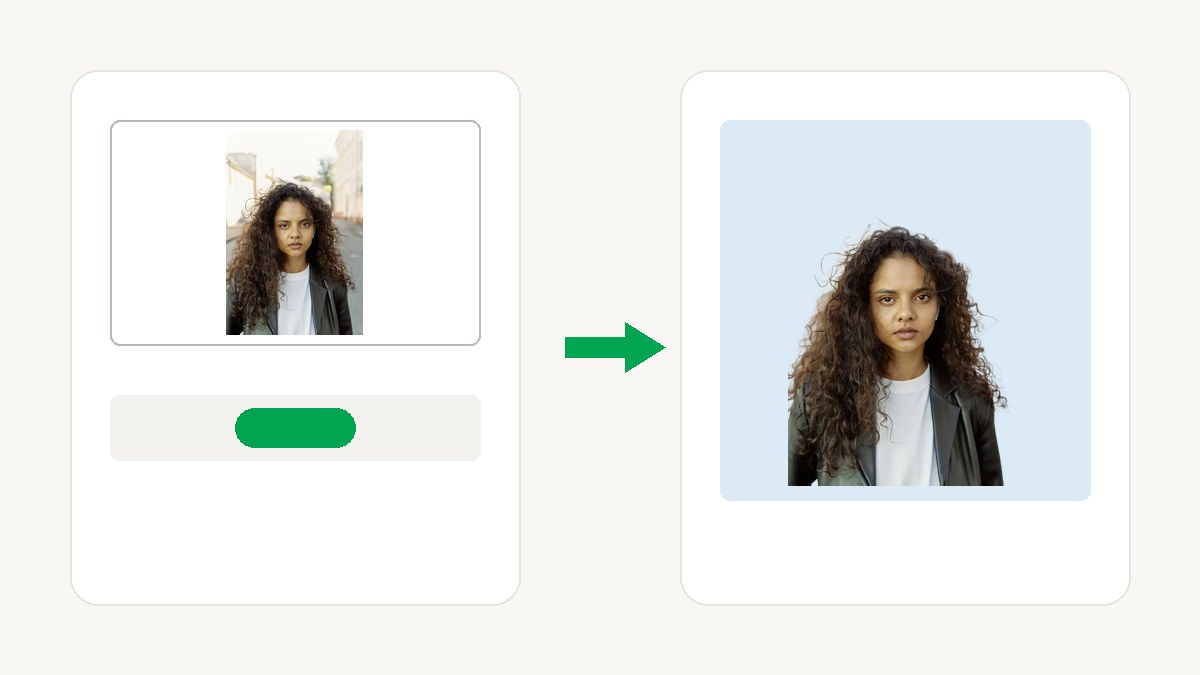
"How to remove background on Google Slides" is really two questions: does Slides have a built-in remover, and what do you do when your account doesn't have it. Short answers: yes, Google Slides can remove image backgrounds — but only on paid Google Workspace plans. On any plan, including a free Gmail account, you can remove the background free with the tool on this page and insert the transparent PNG in one step. Here is both, plus the fixes for when the option is missing.
Method 1: Google Slides' built-in option
Google Slides does have a native background remover — the same Gemini-powered feature that lives in Google Drawings and Google Vids. Per Google's own help page (Remove image backgrounds in Google Drawings, Slides & Vids, checked 2026-10-14):
- Click the image on your slide so it's selected.
- Choose Edit image (it appears in the toolbar when an image is selected, and in the right-click menu).
- Click Remove background.
Two things matter before you count on it:
- It's plan-gated. Google's page is explicit: the feature "requires an eligible Google Workspace or Google One AI Premium subscription." A free personal Gmail account doesn't get it — the menu entry simply never shows up. The exact tier list lives on Google's plans page; the tiers commonly listed by Workspace trackers are Business Standard and above, but treat that as unverified until you check your own plan (TODO: confirm the current eligible-tier list against workspace.google.com).
- You can't Reset it. Google's notes warn that an image with a removed background can't be restored with Reset image — use Undo or Version history if you change your mind.
If the option is there and your image has a simple subject, you're done in three clicks. If it's missing — which is most people — the next method is the whole answer.
Method 2: Remove the background free, then insert it into Slides
This route works on every plan, every browser, and every computer, and it costs nothing for occasional use:
- Upload your image below — JPG, PNG, or WebP, up to 10 MB. The AI cuts out the subject with pixel-precise edges, hair and fine details included. Free, 2 images a day without an account, 5 a day signed in, no watermark.
- Download the transparent PNG. The transparency is real alpha channel — not a white fill.
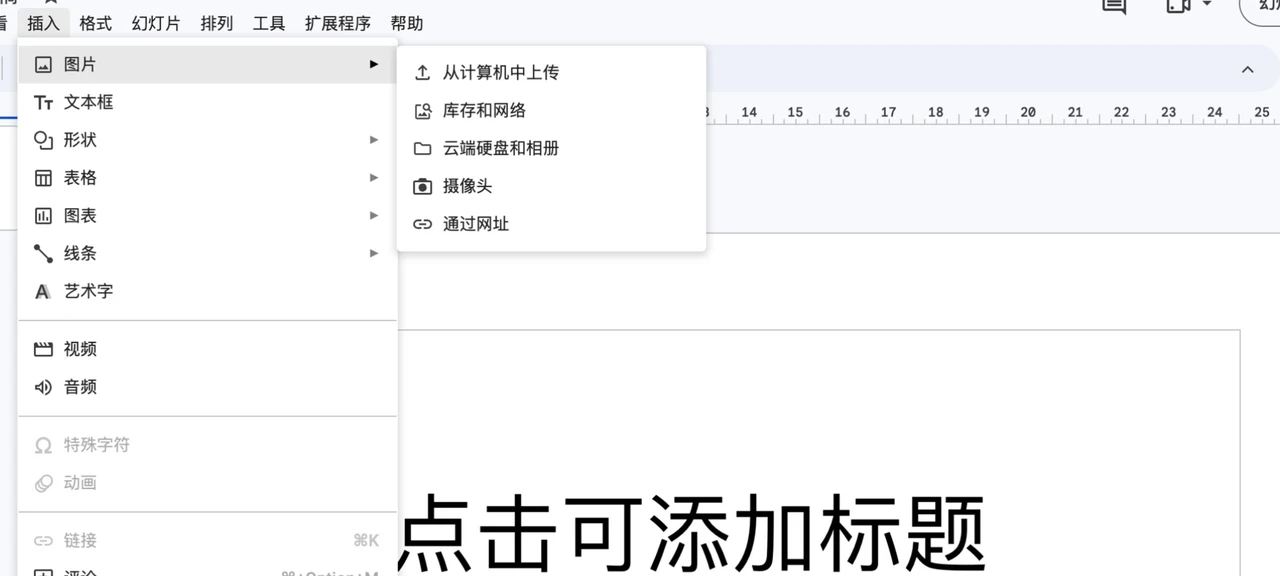
- In Google Slides, go to Insert → Image → Upload from computer and pick the PNG.
- Drag it into place, resize with the corner handles, and use Crop image or Format options if you need to trim or recolor.
The last two steps look like this — the menu path, and the transparent PNG sitting on a slide (notice the slide's own text showing through where the background used to be, not a white box):

Try it right here — this is the same tool, embedded in the article:
JPG, PNG, WebP or HEIC · up to 10 MB · free, 2 images a day without an account
A few honest notes about this route: free downloads cap at 1024px on the longest side — more than a slide needs. Images are processed in memory, never stored. For volume — a class set of headshots, a product catalog — the bulk background remover batches in the browser, and there's an API for developers from $0.02 per image.
How to remove background in Google Slides on Chromebook or Mac
No difference to learn: Google Slides is a web app, so the built-in option is the same in Chrome on a Chromebook as in Chrome or Safari on a Mac — same menu, same plan requirement. The BackGone route is browser-only too, and works identically everywhere.
The only platform-specific caution is on phones: this tutorial is about the browser experience. If you're preparing images on an iPhone, HEIC is fine too — it converts in your browser on upload.
"Remove background" not showing? Fixes
Work through these in order — the first one is the cause almost every time:
- Your plan doesn't include it. This is the usual reason. The feature requires an eligible Google Workspace plan or Google One AI Premium, and on every other account Google hides the entry rather than showing it greyed out. Nothing is broken — you simply don't have the feature. Method 2 above is your route.
- You haven't selected the image. Edit image → Remove background only exists while an image is selected. Click the image once so the blue frame appears, then look again.
- You're in the wrong account. If you have both a personal and a work or school account, check the avatar in the top right — the feature follows the account's plan, not the computer's.
- Your Workspace admin turned it off. On work and school accounts, admins control Gemini features for the organization. If your plan should include it, ask your admin whether Gemini is enabled for your account. (TODO: admin-console path for this toggle, if a reader asks for it specifically.)
- A browser extension is interfering. Rare, but cheap to check: open the deck in an Incognito window with extensions off and look again.
If none of these apply and the option still doesn't appear, the honest conclusion is that your account isn't eligible — which takes you back to Method 2, not to more troubleshooting.
Make the background transparent vs. change the slide background
Two different jobs get confused here:
- Removing an image's background makes the area around the subject transparent, so the slide (or another image) shows through behind it. That's what both methods above do.
- Changing the slide background recolors the entire canvas behind everything. Right-click an empty area of the slide and choose Change background, or use the Slide → Change background menu, to set a color or an image for the whole slide.
Often you want both: a colored slide background, plus a cutout logo or product floating cleanly on it. For the second half of that combo, the change photo background tool can also put your cutout on any of 35+ preset colors or a custom hex before you insert it — useful when the deck's brand color must match exactly. And if the image you need is a signature that belongs on a form or letter, the signature background remover is the version of this tool tuned for ink on paper. For a pure white result — the ecommerce standard — there's the dedicated white background page.
Tips for clean cutouts in presentations
- Logos: insert the transparent PNG, not a JPG of the logo on white. On any non-white slide background, a JPG's white rectangle reads as a mistake; a transparent cutout reads as design.
- Headshots: cut out first, then crop to shape in Slides (Crop image → Mask image → circle). The order matters — masking a photo with a background gives you a circle of background.
- Product photos: a product floating on a colored or photo background slide looks deliberate when its edges are clean. Check the cutout at 100% zoom on hair, fur, glass, and thin handles before you present; our general guide to removing a background without wrecking the edges shows what good and bad results look like.
- Keep the PNG. Slides will compress and re-export images when you share the deck. Keeping the original transparent PNG in your drive means the next deck starts from the clean file, not a re-compressed copy.
- Using PowerPoint instead of Slides? The same two-route logic applies there, with a different built-in — here's the PowerPoint version of this guide.
Frequently asked questions
Can you remove background in Google Slides for free? Two free routes exist. Google's built-in Remove background is free only if your plan already includes it — it requires an eligible Google Workspace or Google One AI Premium subscription, so a free Gmail account never sees the option. The other route costs nothing on any plan: remove the background with BackGone (2 images a day without an account, 5 signed in, no watermark) and insert the transparent PNG into your slide.
Why can't I remove background in Google Slides? The most common reason is your plan: Google gates the feature to eligible Workspace plans and Google One AI Premium, and on any other account the menu entry simply does not appear. Also check that you have actually clicked the image — the option only shows while an image is selected — and that you are signed in with the account you think you are. On a work account, your Workspace admin may have turned Gemini features off. Or skip the menu entirely: cut the background online here and insert the PNG.
Does it work on Chromebook? Yes — both routes work on a Chromebook. Google Slides is a web app, and so is BackGone, so a Chromebook behaves exactly like any other computer with a browser. There is nothing to install on either side.
How do I make an image transparent in Google Slides? Google Slides cannot make an image transparent by lowering its opacity the way photo editors do — its Remove background feature (plan-gated) deletes the background instead. The plan-free route: remove the background with the tool on this page, download the transparent PNG, and insert it. A transparent PNG placed on a slide keeps its transparency over any slide background.
What file types work? BackGone accepts JPG, PNG, and WebP photos up to 10 MB per image, and returns a transparent PNG. Google Slides then accepts that PNG like any other image via Insert > Image. HEIC photos from an iPhone upload directly — they're converted to JPEG in your browser.
Is there a Google Slides background remover extension? Third-party add-ons exist, but they route your image through someone else's servers and most gate their output behind a tiny free allowance and broad account permissions. If your plan includes Google's built-in option, you do not need an extension; if it does not, the BackGone route on this page needs no extension either.
Last checked: 2026-10-14 — Google's built-in feature, plan gating, and menu path re-verified against Google's support page.